Make sure your client has an account
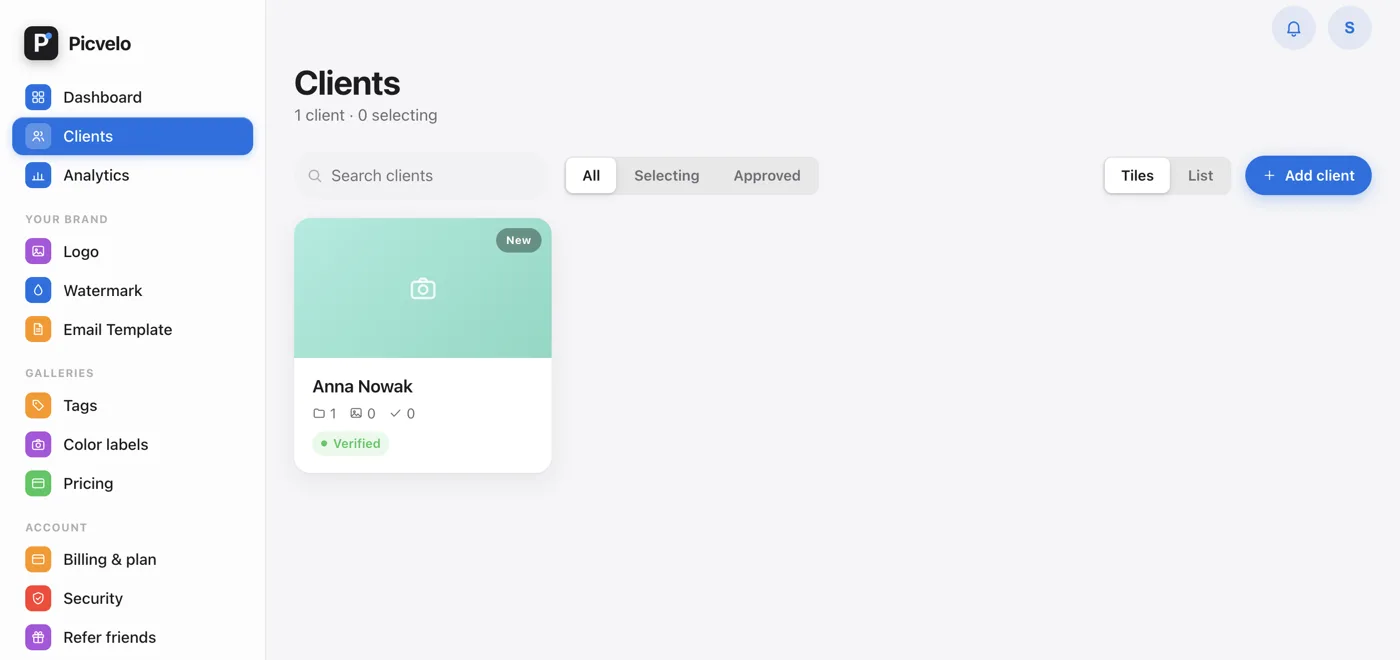
Every client has their own login and password, set when you add them in the panel. Those details open the gallery, so keep them handy (on the client page, click Edit, and you'll find the Show password button in the window).
Click "Send the gallery to your client"
Once your photos are uploaded, the Send the gallery to your client button sits at the top of the gallery. You can send the same email with the Send email button in Gallery settings, in the Email to client section. Both open the same confirmation window. Your client gets a message with a sign-in link and their access details.
Your client gets an email with a login link plus their own username and password for the gallery.
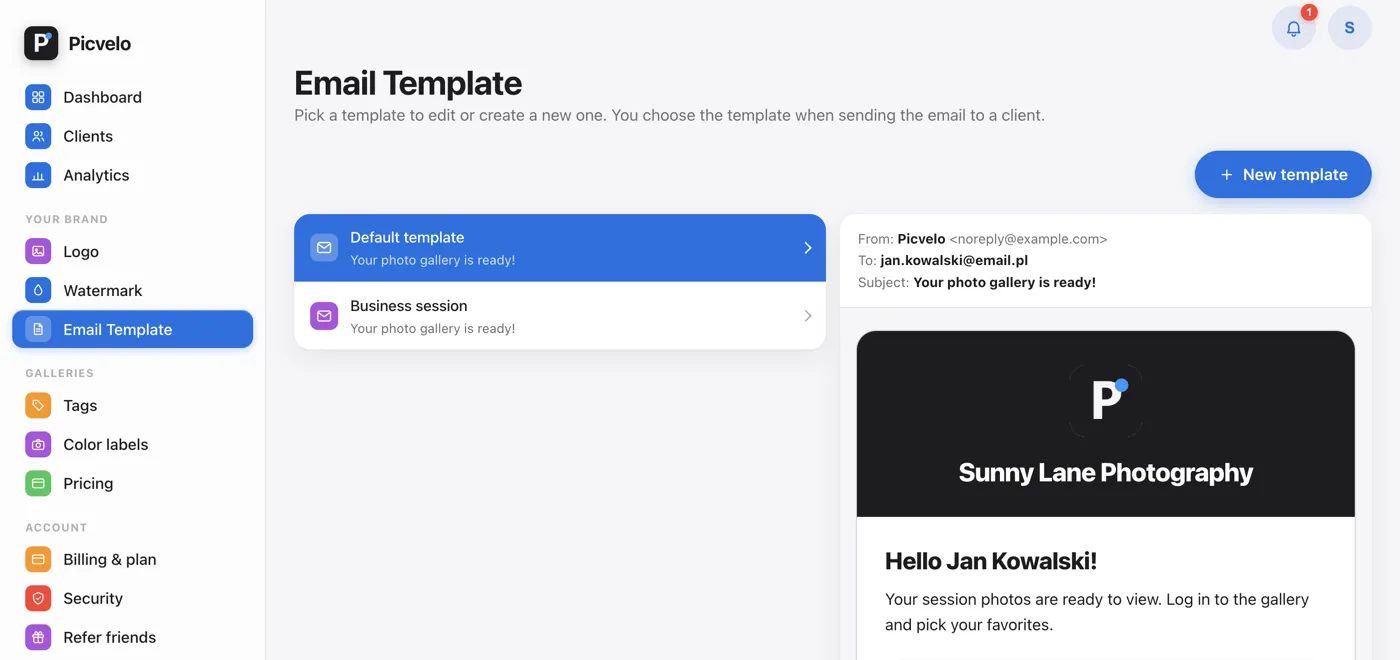
Choose an email template
If you have saved email templates, the Email to client section shows an Email template list. The template you pick there applies to both send buttons. You edit the text (subject, greeting, description, footer) in the Email Template tab on every plan, and the visual style (colors, font, button shape) on the Pro and Studio plans.
Track the selection progress
The stage bar at the top of the gallery moves from Sent to Client selecting, and the numbers below it show selected, recommended, favorite and rejected photos. When the number of selected photos grows, you know your client is working on it. If your client hasn't opened the gallery after you sent it, it shows up on your dashboard in the Needs attention section.