Your client signs in and browses the photos
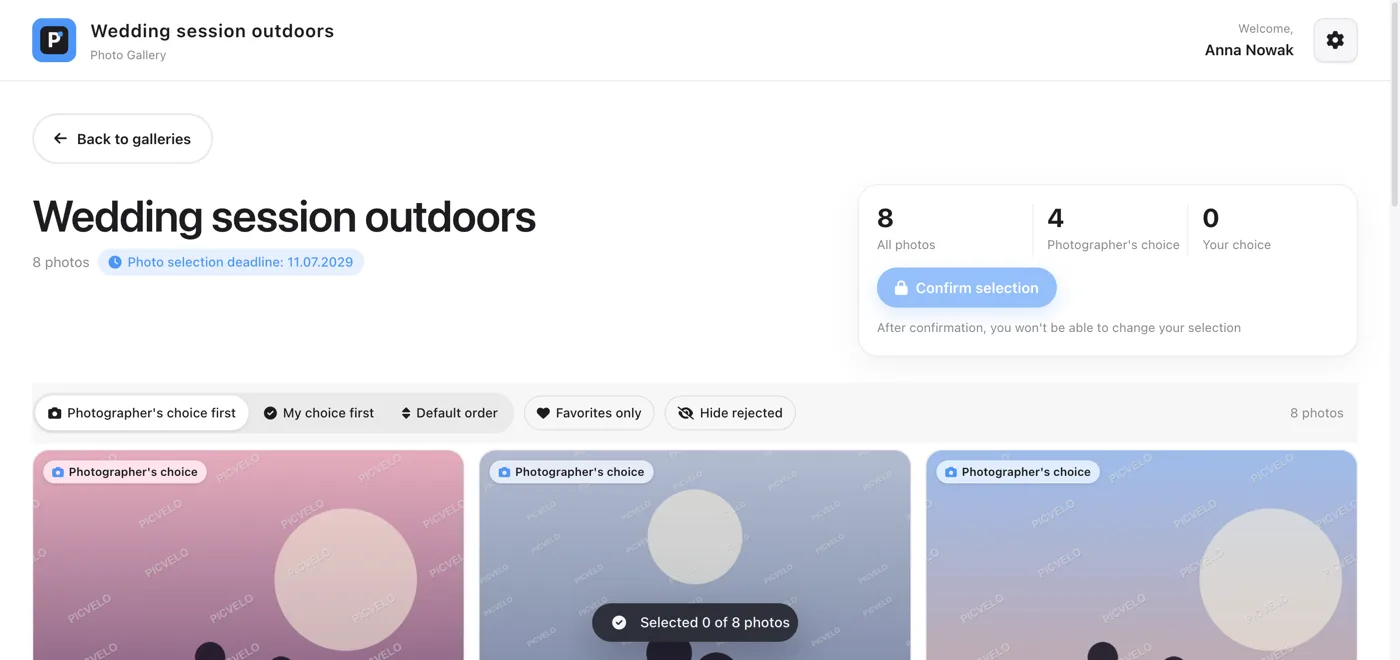
Your client goes to /login, enters the login and password from the email, and then sees a grid of thumbnails. They can open any photo full screen.
They click the selection circle on a photo
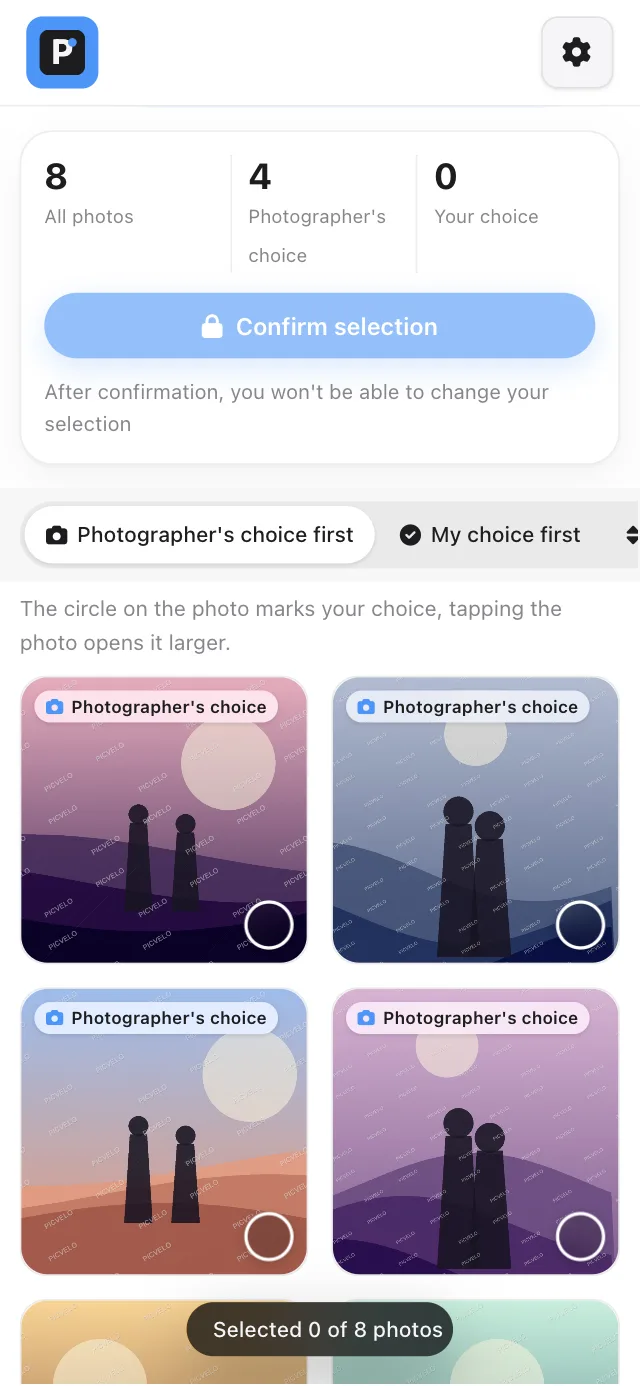
Every photo has a selection circle in its bottom right corner. When clicked, it fills with color and shows a check mark, and the photo gets a frame. Clicking again undoes the pick. In the enlarged view, the Select button does the same thing.
Picks save automatically
Every click goes straight to the server. Your client doesn't need to send or confirm anything. They can close the tab, and when they come back, their selection is exactly as they left it.
Finally, they click "Confirm selection"
The counter in the card at the top of the gallery and the bar at the bottom of the screen show how many photos are selected and, if you set a package limit, how many go beyond the package. The Confirm selection button closes the selection and sets the gallery status to Approved.