1
Select a photo
Every photo has a circle in its bottom right corner. Click it to select the photo: the circle fills with color and shows a check mark, and the photo gets a frame in the same color. Click again to undo.
2
See a photo up close
Click the photo itself to open it full screen. At the bottom of the enlarged view there's a Select button, which changes to Selected when you click it. You can browse and decide in one go.
- the left and right arrow keys move to the next or previous photo,
- Esc closes the enlarged view,
- on a phone, swipe sideways, and zoom with two fingers or a double tap.
3
Keep an eye on the counter
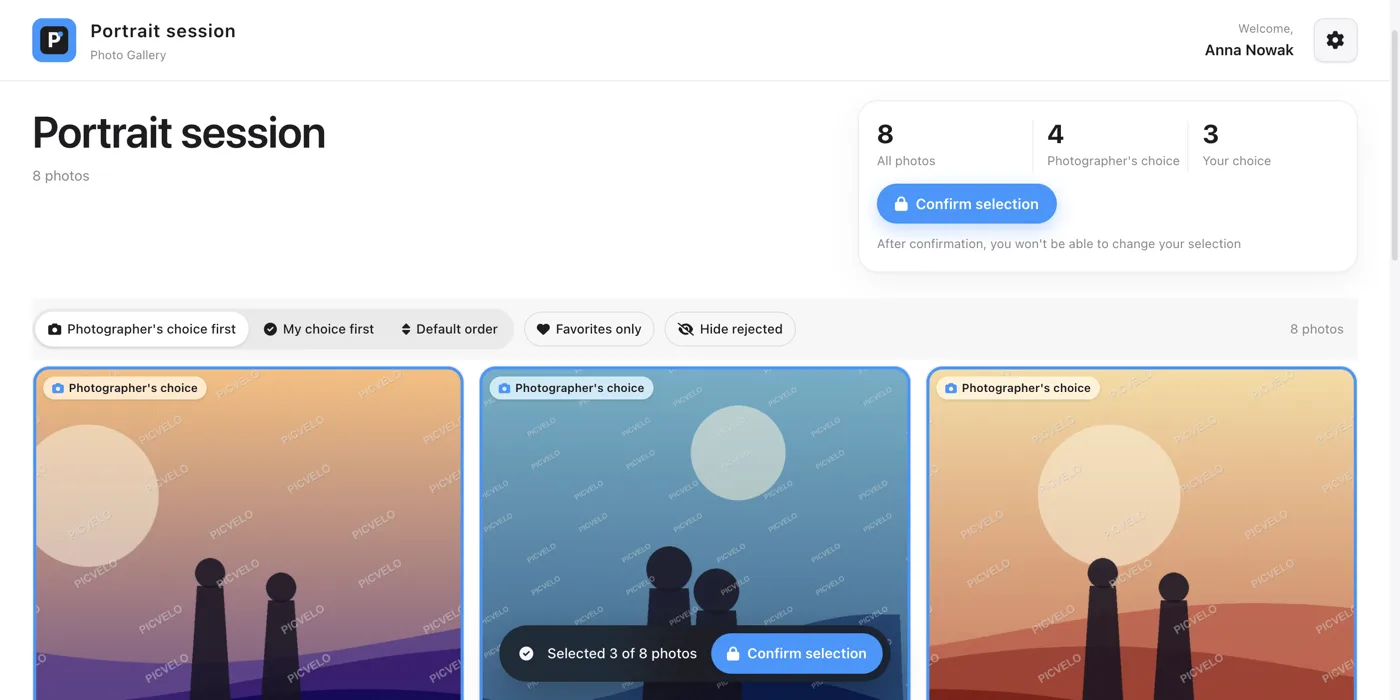
A bar at the bottom of the screen always shows how many photos you've selected. In the card next to the gallery name you also see three numbers: all photos, Photographer's choice and Your choice.

4
Arrange the photos your way
Above the grid there are buttons that change the order and hide some photos. They don't change your selection, only what you see on screen.
- Photographer's choice first moves the photos your photographer recommends to the top,
- My choice first puts the photos you've already selected at the top,
- Default order goes back to the gallery's original order,
- Favorites only and Hide rejected narrow the view.