Check mark: this is what you order
The circle with a check mark in the bottom right corner of a photo (the Selected button in the enlarged view) is the only mark that actually selects a photo. Only these photos count toward your package, and only they go to your photographer as your order.
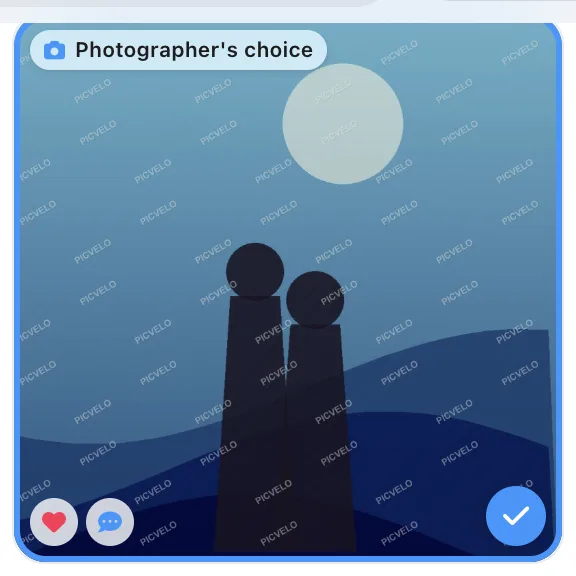
Heart: I like this one
On a computer, the heart, the reject sign and the speech bubble appear on a bar in the bottom left corner of a photo when you hover over it. On a phone, you'll find them at the bottom of the enlarged view.
The heart adds a photo to your favorites. It doesn't count toward your package, doesn't cost anything and doesn't decide anything. It's handy on your first pass through the gallery, when you want to set aside photos worth a second look.
Reject: definitely not this one
The reject sign marks photos that are out. A rejected photo turns gray and gets a Rejected badge. Nothing disappears from the gallery, but on your second pass you can skip these photos easily. Rejecting a photo removes its check mark, and selecting it again removes the reject.
Filters tidy up the view
Above the grid there are two buttons that use these marks: Favorites only leaves just your hearts on screen, and Hide rejected hides the rejected photos. Click either one again to go back to the full gallery.

What your photographer sees
Everything. In their panel, your photographer sees a heart icon and a reject icon on the photos, plus counters for favorites and rejected photos above the gallery. So they see not just your selection, but also what you liked and what you clearly don't want.