Open the comment window
On a computer, hover over a photo: a bar with a heart, a reject sign and a speech bubble appears in the bottom left corner. On a phone, tap the photo and you'll find the speech bubble at the bottom of the enlarged view. Clicking the speech bubble opens the Photo comment window with a text field and a short hint about what it's for. On a phone, the window slides up from the bottom of the screen.
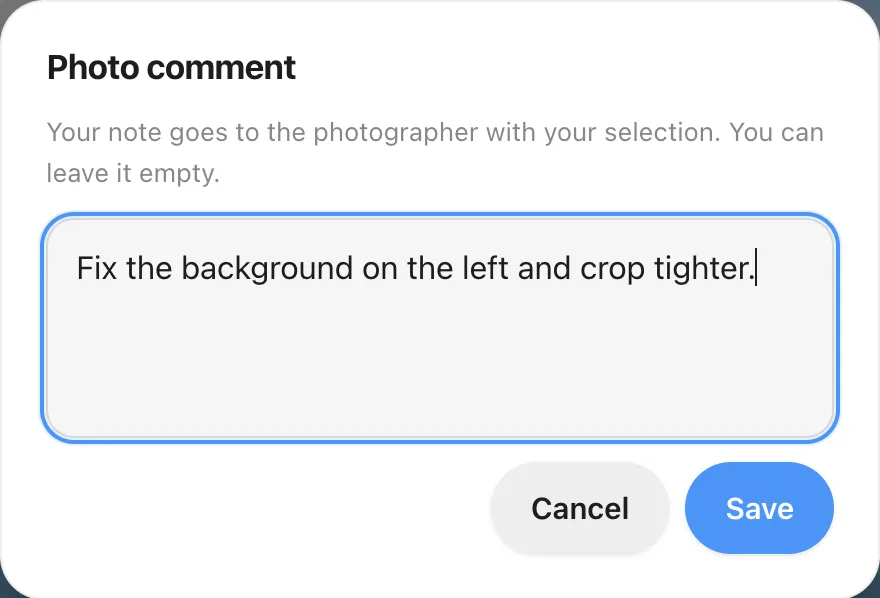
Write it and save it
Keep it under 500 characters. That's plenty for a clear request. Good comments are short and cover one thing: "fix the background on the left", "crop tighter", "I'd like this one as a large print". Click Save and the window closes.
Edit or delete a comment
Each photo has one comment. When you open the window again, it shows what you wrote before, and you can change it. To delete a comment, clear all the text and save the empty field. Photos with a comment show a small speech bubble icon in the bottom left corner, so you can see at a glance which ones have notes.
When comments stop working
You can only add comments while the gallery is open. After you confirm your selection, or once the deadline passes, the window no longer opens. The comments you already left stay visible on the photos as read-only text.