Set a selection deadline
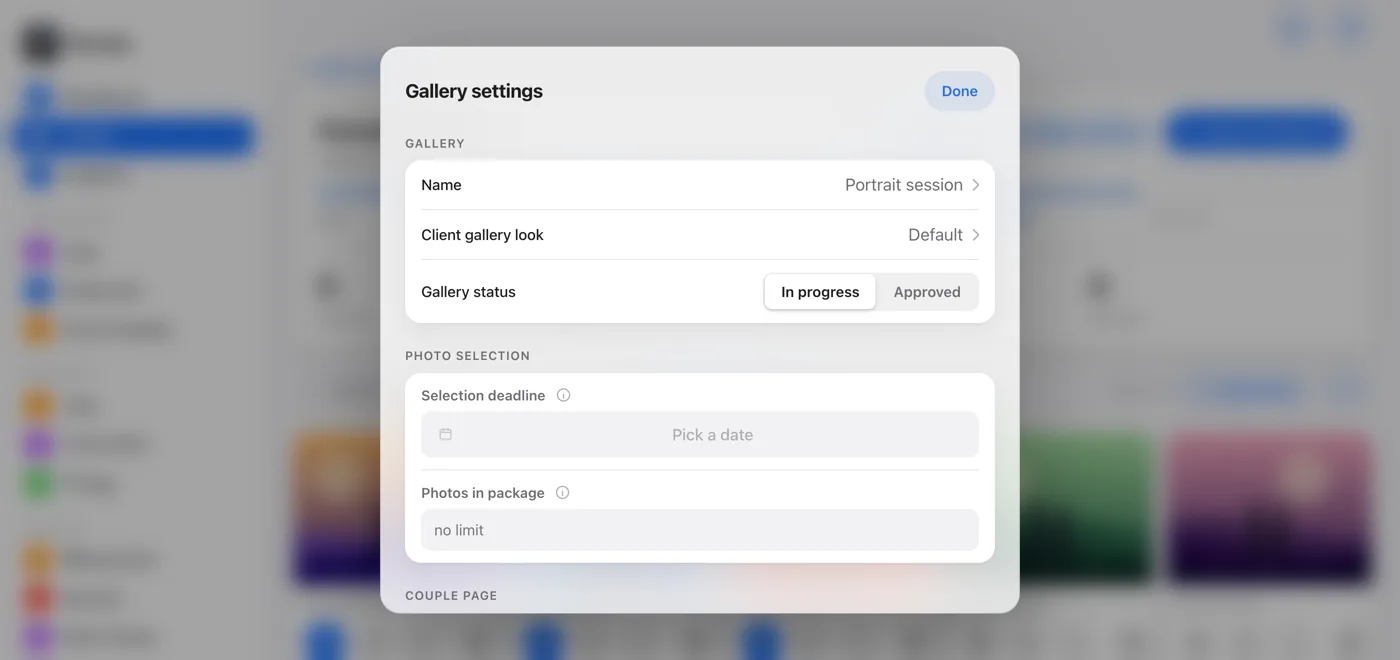
On the gallery page, click Gallery settings. The Selection deadline field is in the Photo selection section. We suggest 14 days from when you create the gallery, but you can change the date any time or clear it completely. Your client sees the deadline at the top of their gallery, and you get a reminder in the Needs attention section of your dashboard.
Set the number of photos in the package
In the Photos in package field, enter how many photos the session price includes. Leave it empty for no limit. Your client sees a counter like "Selected 32 / 25 in package" and how many photos go over the package.
Switch the gallery status
The status has two options: In progress (your client picks) and Approved (the selection is closed). Your client approves it themselves by clicking Confirm selection, and you can undo that.
Attach a price list to the gallery
In the same section, you choose the price list your client sees (the field appears once you've saved at least one price list). If you leave it empty and the gallery has a tag with a price list assigned, the gallery uses that one automatically.