Create a price list
In the side menu, click Pricing, then Add price list. In the window, give it a working name (for example "Wedding session 2026") and add any items: name, price, description. To open an existing price list, click its row.
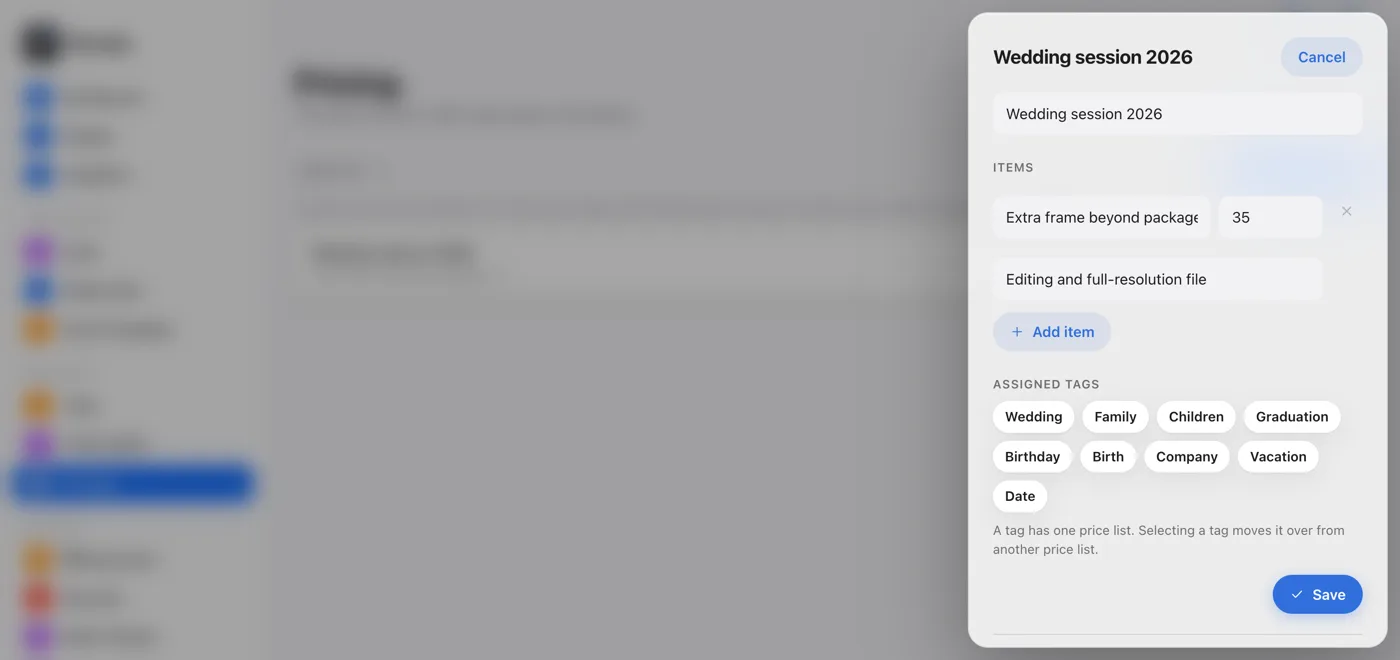
Fill in the items
Items can be anything: an extra shot, a print, an album, travel. Picvelo doesn't calculate or charge anything from them; they're information for your client. Add another row with the Add item button.
Attach the price list to a gallery or a tag
In the album, click Gallery settings and, under Photo selection, pick a price list from the Price list menu. You attach tags in the price list window, under Assigned tags. If you leave the gallery on "No price list" and it has a tag with a price list, the gallery inherits that one automatically. The choice on the gallery wins over the tag.
Your client sees the price list in the gallery
Your client sees a collapsible Pricing: name block above the photos. When they go over the number of photos in the package, the counter shows the extra photos, and a See pricing link opens that block. Your client sees what their choice means right away.