Create tags in the Tags tab
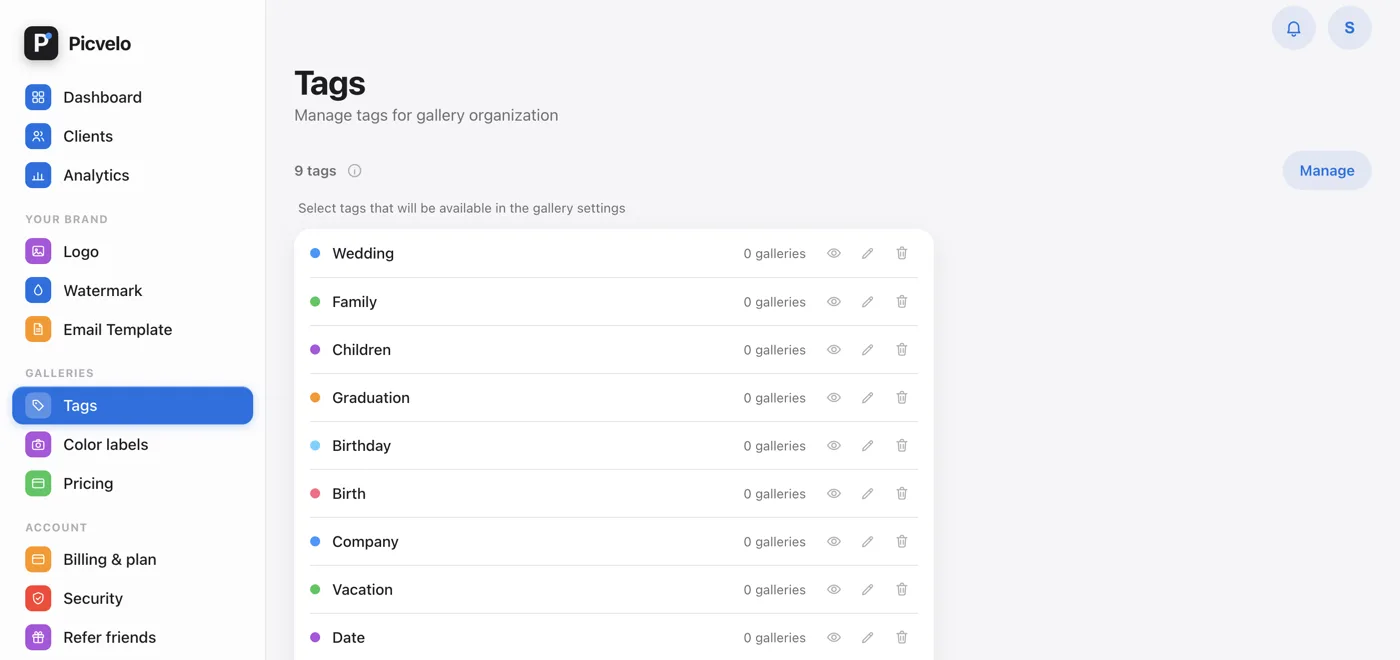
In the side menu, click Tags, then New tag, type a name (up to 50 characters) and confirm. Each tag is a row with its number of galleries, and hovering shows the actions: hide (eye icon), rename and delete. The Manage button lets you select several tags and delete them at once.
Assign tags to a gallery
In the album, click Gallery settings and, under Tags, click the pills. Changes save right away, with no separate button. A gallery can have several tags at once.
Filter a client's galleries
On a client's page, above their list of galleries, tags work as a filter: All or one chosen tag. When a client has many sessions, it's the fastest way to see only the weddings or only the business shoots.
Attach a price list to a tag
In the Pricing tab, in the price list window, you select tags under Assigned tags. Then every gallery with that tag shows your client that price list automatically, unless you set a different one for the gallery.