1
Selecting with your finger
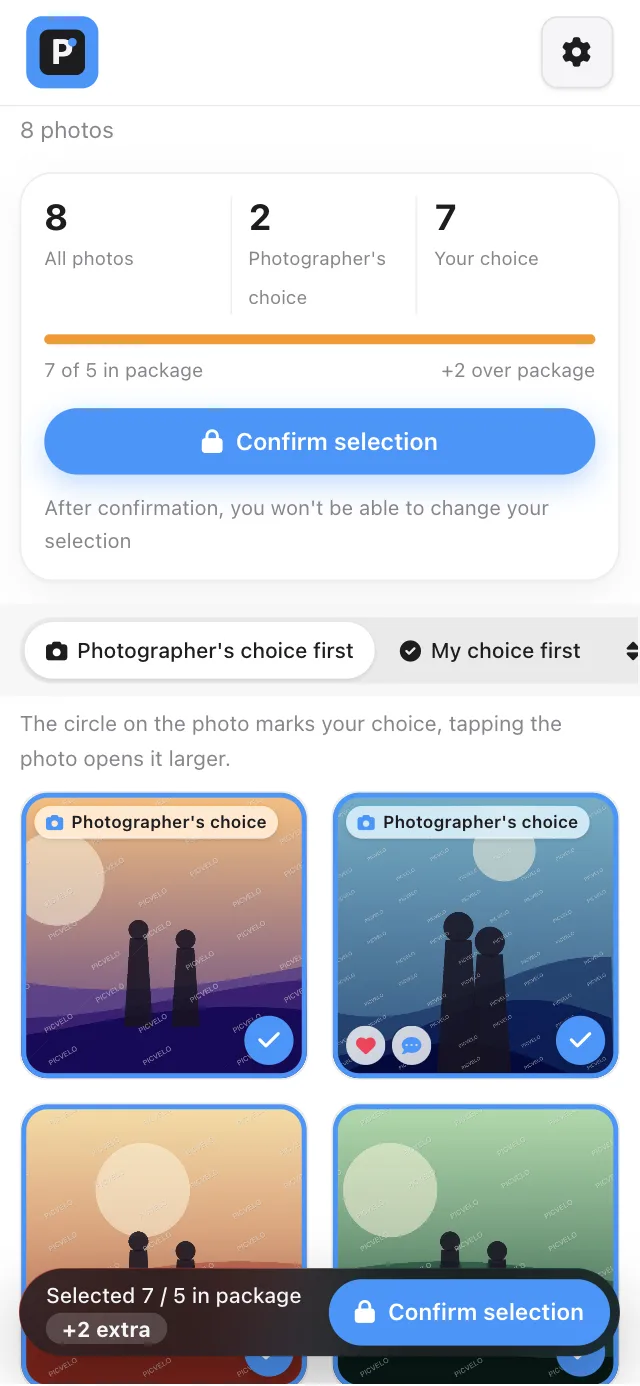
On a phone, a photo tile has no labeled Select button, because the words would take up half the screen. The only control on the photo is the circle in the bottom right corner: tap it to select the photo. Tap the middle of the photo to open the enlarged view. At the bottom of that view you'll find the heart, the select button, the reject sign and the speech bubble for comments. Small icons in the bottom left corner of a tile show which photos already have a heart or a comment. A sentence above the grid reminds you how this works.
2
Gestures in the enlarged view
- swipe sideways to go to the next or previous photo,
- spread two fingers to zoom in up to three times,
- double tap to zoom in two times, and double tap again to go back,
- the button at the bottom selects the photo without closing the enlarged view,
- next to it you'll find the heart, the reject sign and the speech bubble.
3
Add the gallery to your home screen
You can add the gallery as an icon, so it opens without typing the address. How you do it depends on your phone:
- Android, Chrome browser: an Install app button appears in the gallery. If you don't see it, choose the same option from the browser menu,
- iPhone, Safari browser: tap the share icon at the bottom, then Add to Home Screen. There's no separate button in the gallery on iPhone.