Open the tab
In the side menu, click Email Template. On Pro and Studio you first land on the list of templates: click Default template, then Edit template under the preview. On the free plan the editor opens right away.
Change the texts
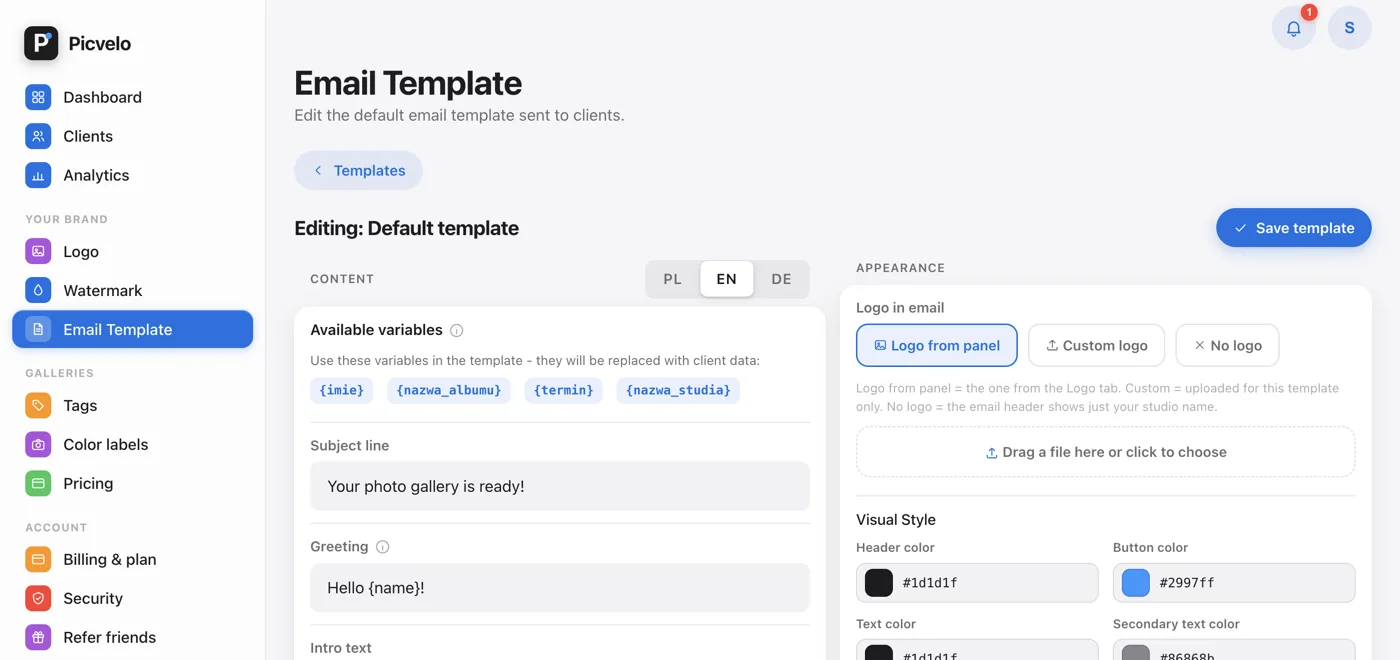
The seven fields match the parts of the email in order: subject line, greeting, intro text, title of the credentials section, button text, extra information and the footer with contact details. The preview in the right column changes as you type, so you see the result before you save.
Above the fields is an Available variables card with four placeholders: {imie} (client's name), {nazwa_albumu} (gallery name), {termin} (deadline) and {nazwa_studia} (studio name). Click a variable to copy it. They work in all seven fields, including the subject line.
Watch the language versions
The PL, EN, DE switch above the fields changes the language version of the template, not the language of the panel. The email goes out in the version that matches the language your panel is set to at the moment you send. If you work with clients in other languages, fill in those versions too, and switch the panel language in the account menu before you send to them. Versions you don't touch keep the default text.
Save or undo
Save template above the editor saves the language you have open, and on Pro and Studio the look as well. Restore default content under the fields deletes your texts in this language and brings back the defaults, after a confirmation.