Create a template
Go to Email Template. Instead of the editor you see a list: Default template and your named templates, with a preview of the selected one next to it. Click the New template button above the list, enter a name (up to 100 characters) and confirm.
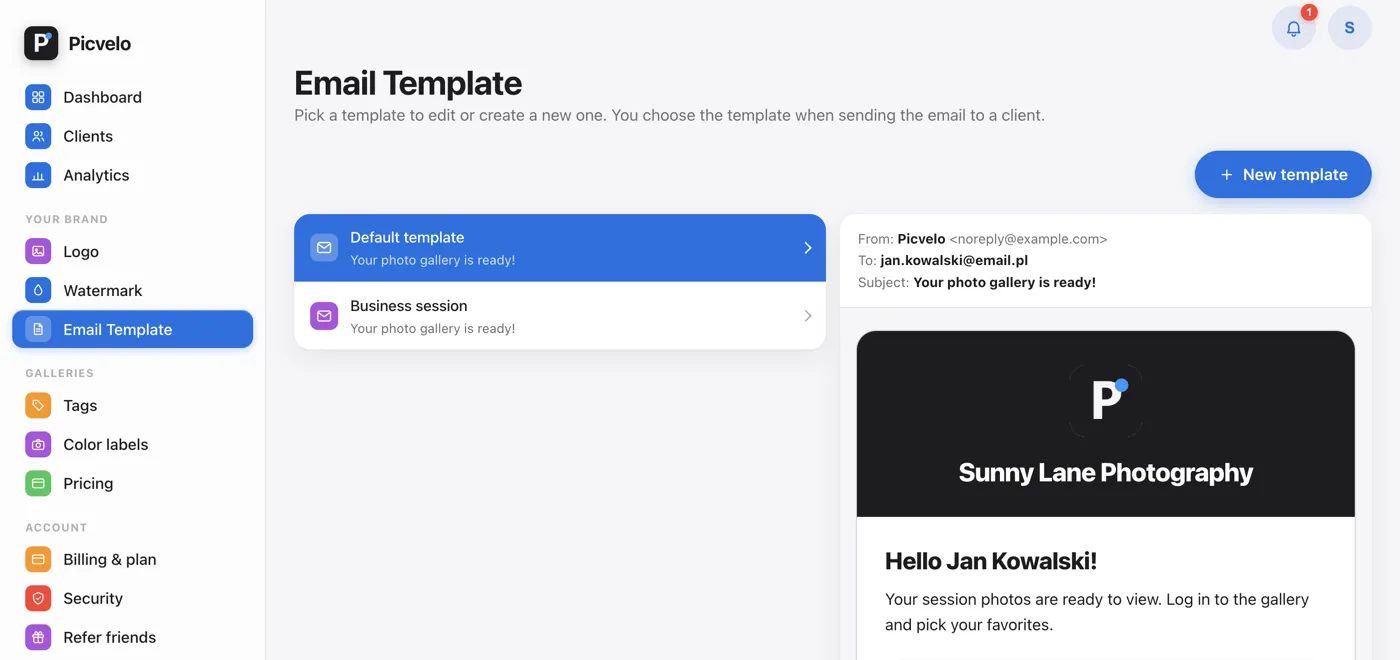
Edit it like any other
Select the template on the list and click Edit template under the preview. The same editor opens as for the default one: seven content fields, language versions, visual style and logo mode. At the top there's a Templates button that takes you back to the list. Under the fields you'll find Rename template and Delete template.
Pick it when sending
In the album, click Gallery settings. Under Email to client, above the Send email button, there's an Email template list. Default is selected to start with. Your choice applies to this one send and doesn't change anything for good.
Limit and cleanup
You can have ten named templates. At the eleventh, you see the message "Limit of 10 templates reached." Deleting a template also deletes its custom logo, if it has one, and takes you back to the list.