The header is your brand
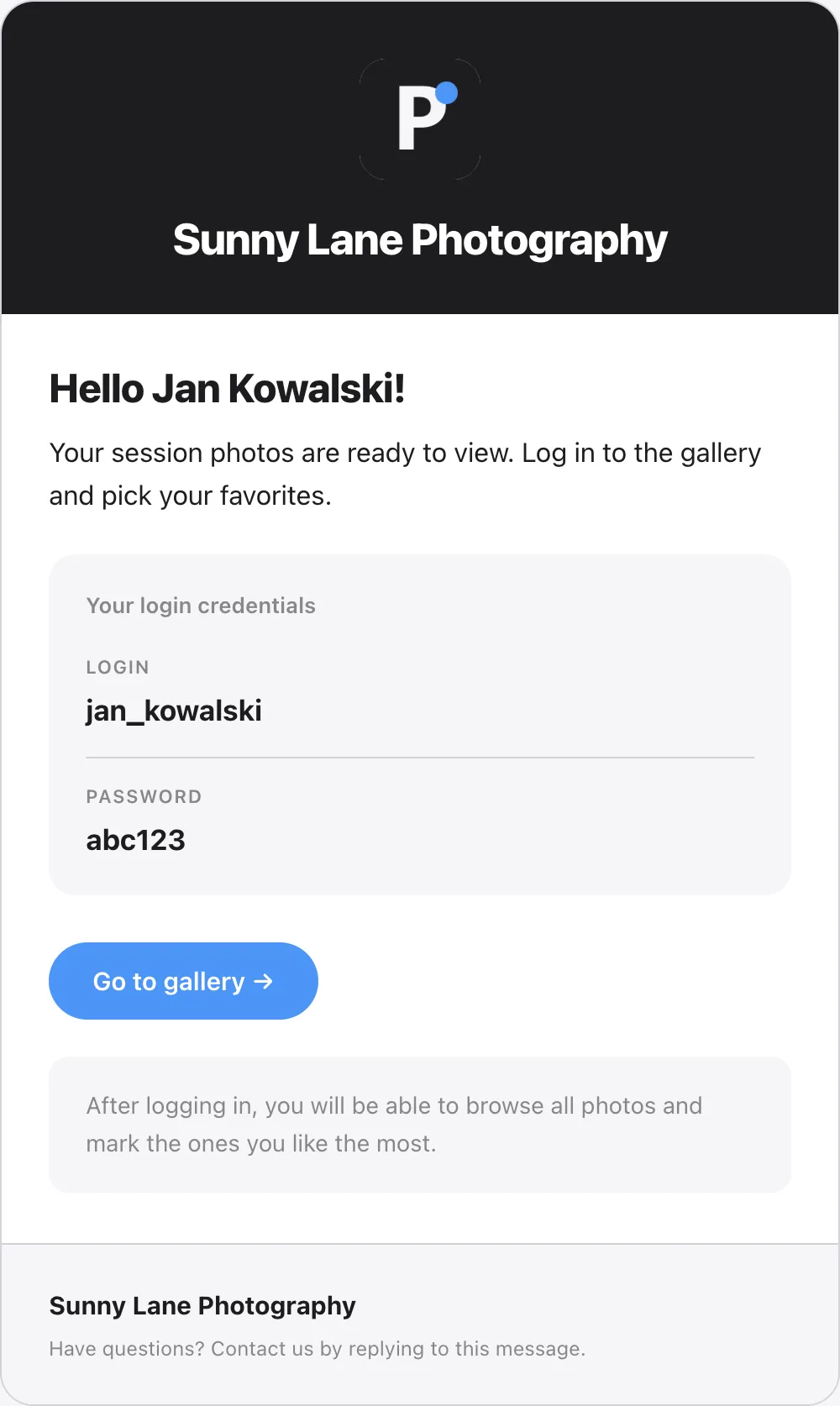
At the top of the email is the name you entered in the Logo tab, in the Business name in emails field, with your logo above it. You can set the business name on any plan. The Picvelo name doesn't appear there.
Seven fields you can change
- Subject line, by default "Your photos are ready",
- Greeting with the
{name}variable, by default "Hello {name}", - Intro text, a sentence saying the photos are waiting,
- Title of the credentials section, by default "Login details",
- Button text, by default "Open gallery",
- Extra information under the button,
- Footer, contact, by default "If you have any questions, please contact your photographer."
Above the fields, the editor lists the variables you can use in any of the seven fields: {imie}, {nazwa_albumu} (gallery name), {termin} (deadline) and {nazwa_studia} (studio name). A missing value never leaves a bare variable in the email; you get a placeholder text instead (for example "no deadline").
The sign-in box
The login always appears. The password appears only if it's saved for the client. This is the only place where the client gets the full set of details, so don't remove this box from the content unless you have to.
Footer
At the bottom is your contact line and an Unsubscribe link, which is required for email sending. The note "This message was sent automatically, please do not reply to it" appears only when Picvelo doesn't know your email address. When it does, the note is left out, because the client's reply really reaches you.