1
Where to find it
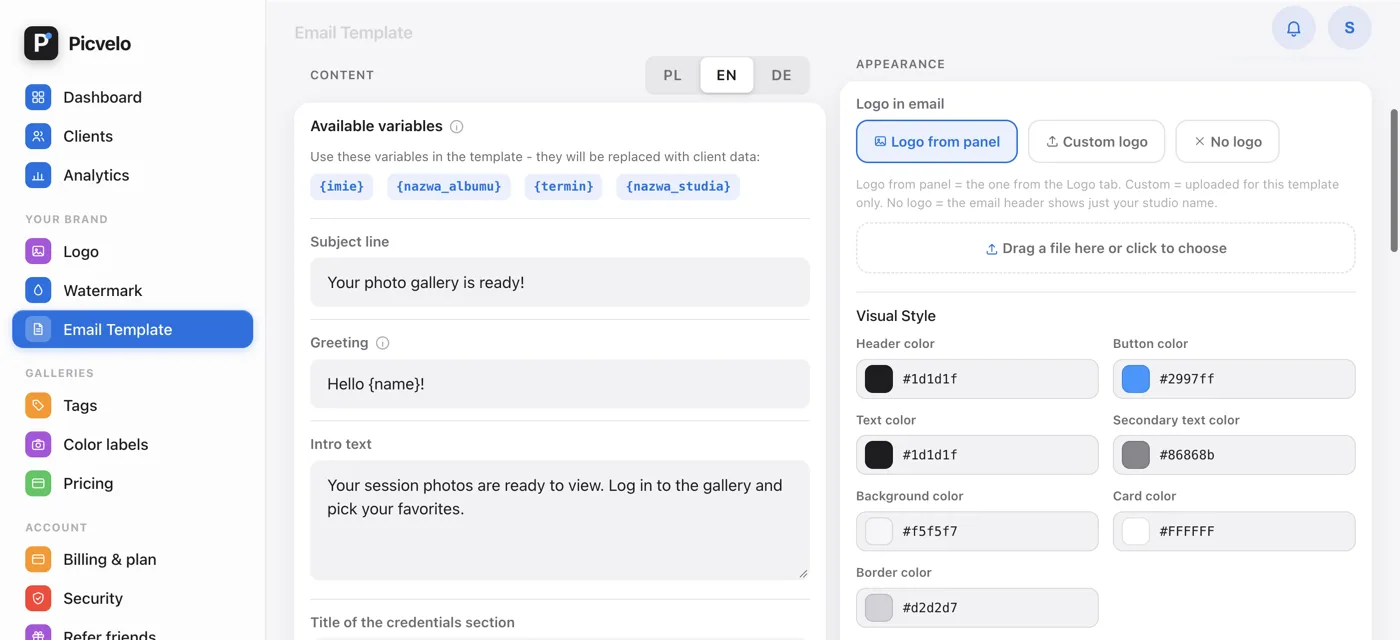
In the same place as the text: the Email Template tab, right-hand Appearance column, above the preview. The Visual Style part sits under the logo choice. The preview below it shows changes right away, including a new font. You save with the Save template button at the top, together with the text.
2
What you can set
- seven colors: header, button, text, secondary text, background, card and border,
- Font from a ready-made list,
- Border radius of the corners,
- Button style,
- Logo size and Logo shape.
3
Colors are flexible to type
We accept values with or without the hash, and the short form too: #ff0000, ff0000 and #f00 all give the same red. An empty field means "don't change", not an error.
4
On the free plan
The Appearance column has a PRO badge. Instead of the style fields, it shows a short note and a link to pricing. You can change the email text as usual; the look stays at the default, and the preview below shows it unchanged.