Add a client
In the Clients tab, click Add client. Enter their first and last name, then set the login (at least 6 characters) and password they'll use to open the gallery. The Generate password button fills in a random one. The email address is optional, but without it Picvelo can't email the gallery to your client. You can look up the password later with the Show password button in the client's edit window.
Create a gallery for this client
On the client's page, click Create new gallery. Choose the Photo selection type, give the gallery a name your client will recognize right away, and set the Selection deadline (14 days from today by default). Click Create gallery. You can set the photo limit, price list and other options later in Gallery settings.
Upload photos
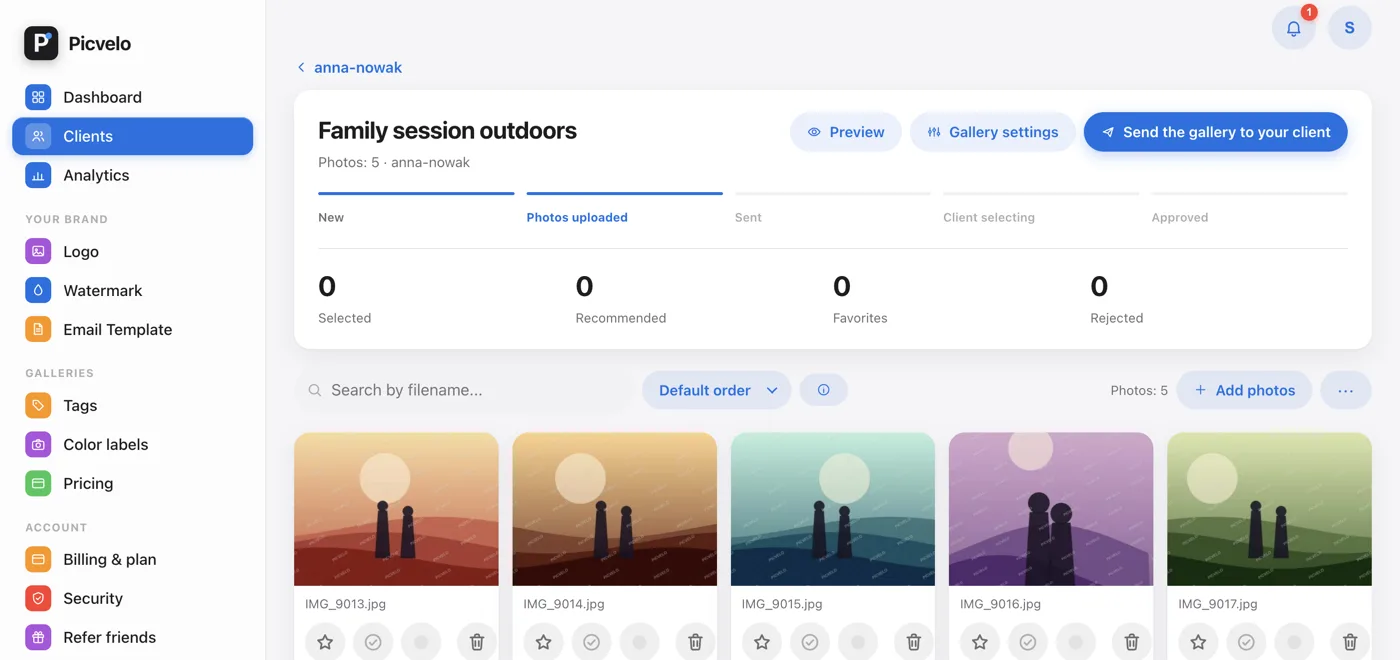
An empty gallery shows an upload area. Drag JPG, PNG or WEBP files onto it, or click Upload photos and pick them from your computer. A progress bar shows how the upload is going. Right after upload, photos go into a queue that adds the watermark and creates previews, so for a moment you see Processing....
Send the gallery to your client
Once the photos are uploaded, the Send the gallery to your client button appears in the gallery header. Click it and confirm. Picvelo sends an email with the sign-in link, login and password. From then on, your client browses the photos and marks the shots they want. If the client has no email address, the button doesn't appear: add the address on the client's page, or pass on the sign-in details yourself.