Open the Logo tab
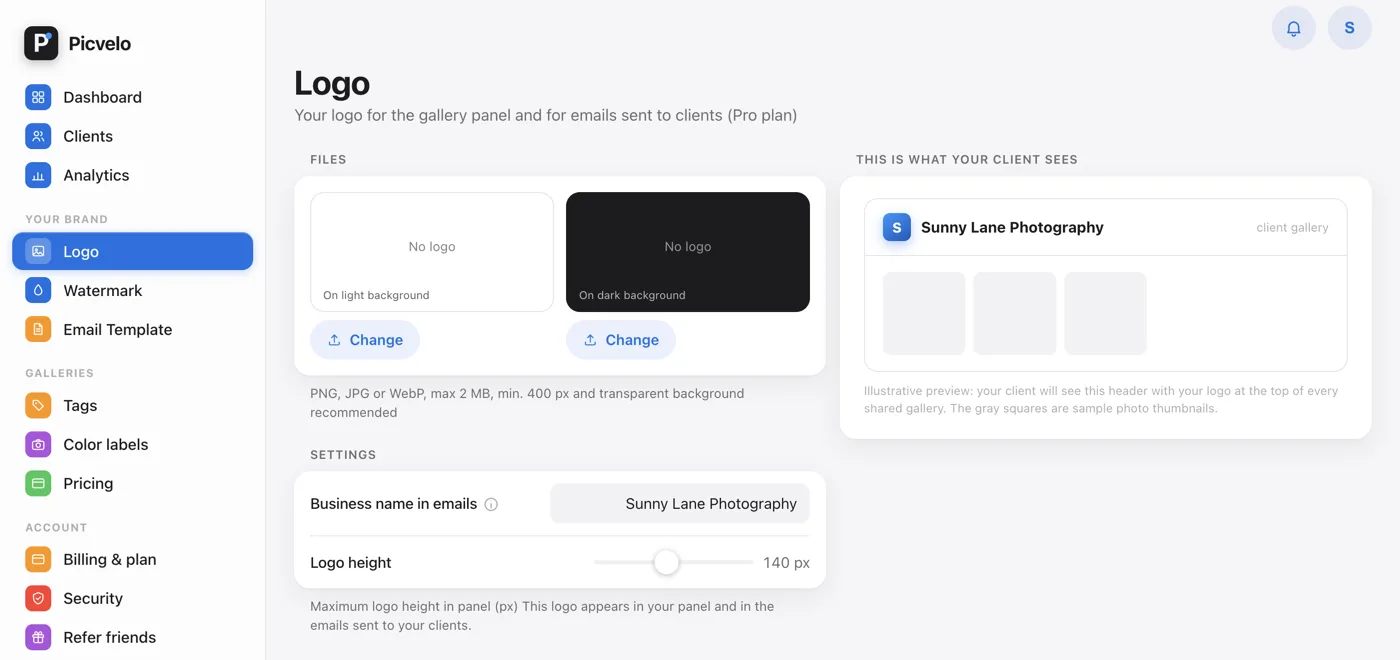
In the side menu of the panel, under Your brand, click Logo. The page has your logo files, brand settings and a This is what your client sees preview.
Enter your business name
In the Settings section, type your name in the Business name in emails field. It works on every plan, including Free, and saves by itself, with no separate button. It goes into the emails your clients get and into the gallery header, so type it the way you want clients to see it.
Upload your logo (Pro and Studio plans)
The Files section has two slots: a logo On light background and one On dark background. Click Change and pick an image from your computer: PNG, JPG or WebP, up to 2 MB, ideally at least 400 px wide with a transparent background. Use the Logo height slider to set the maximum height (60 to 240 px).
Check the preview
The This is what your client sees preview shows how the logo looks in the gallery header. A file saves as soon as you pick it, and settings save when you change them, with a Saved message. The change applies right away to all galleries and to your next emails.