Open the look editor
On the gallery page, click Gallery settings, then the Client gallery look row, which shows the name of the current preset. Until you dismiss it, a Gallery templates banner with a Customize look button also shows above the photo grid. Saving changes needs the Pro or Studio plan.
Pick a ready-made preset
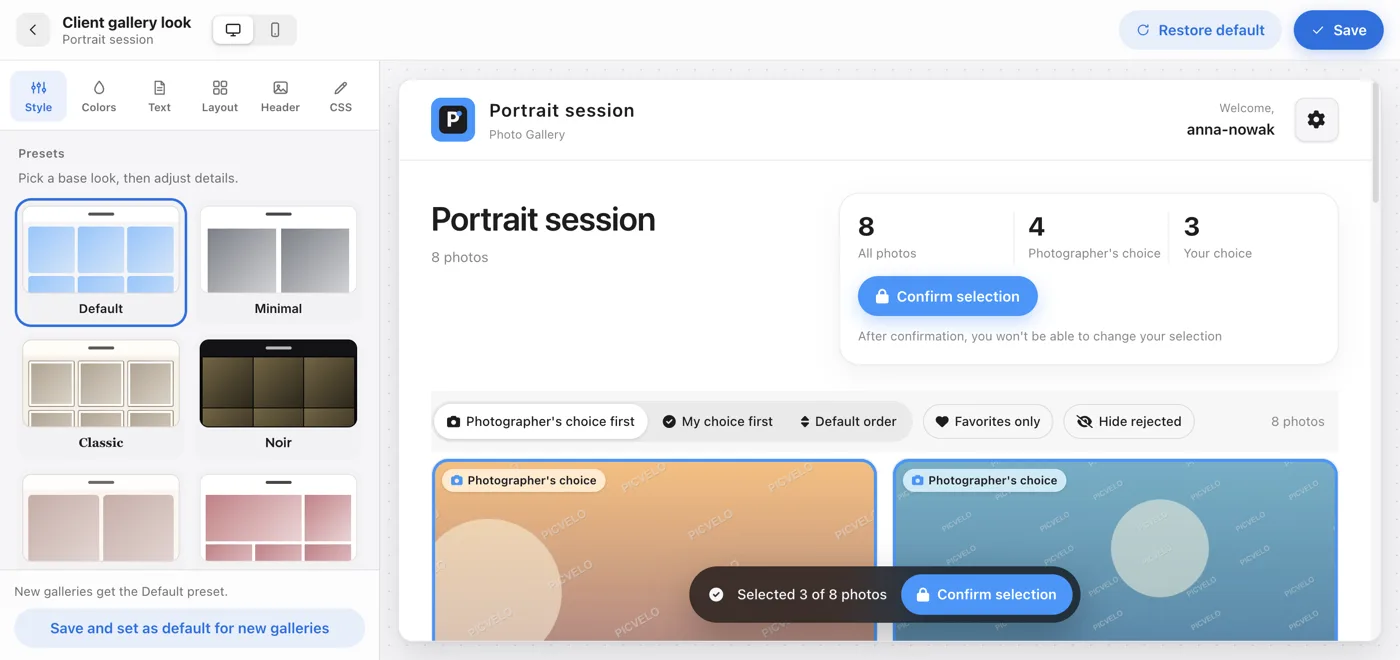
The Style tab has eight presets: Default, Minimal, Classic, Noir, Wedding, Editorial, Boho and Studio. A preset sets a full color scheme and typography, and you adjust only what you want.
Fine-tune the details
The other tabs are Colors (background, surface, accent, text), Text (font and heading weight), Layout (photo aspect: square, portrait, landscape, whole photo or rows, plus grid density, number of columns and card radius) and Header (header style, a custom title and a logo for this gallery).
Check the preview and save
The preview on the right shows the gallery exactly as your client will see it, before you save. Click Save at the top. If every new gallery should get this look, open the More menu (three dots) and choose Save and set as default for new galleries. The Studio plan also lets you add custom CSS in the CSS tab.