Enter the price for the complete set
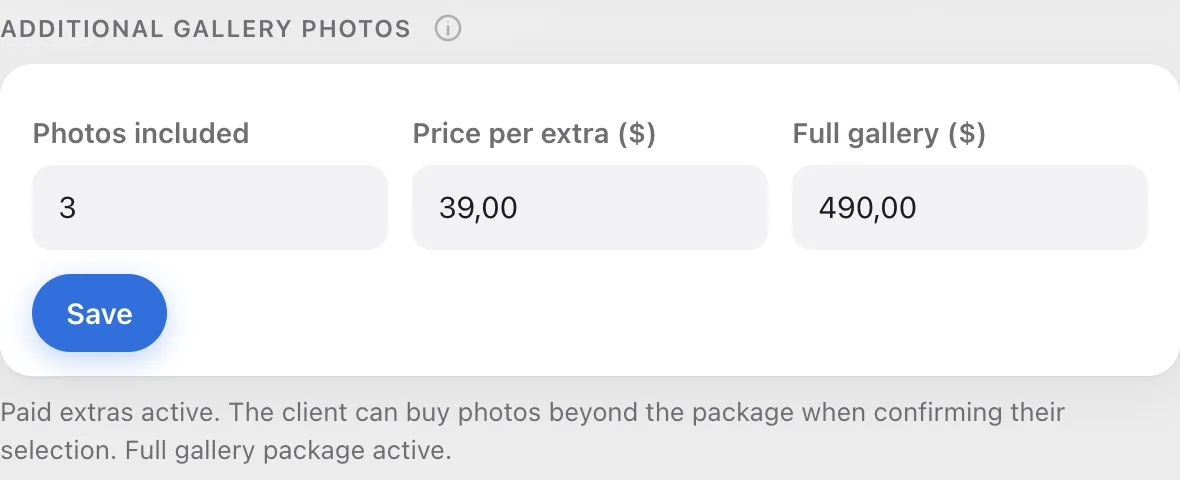
In the Gallery settings window, under Additional gallery photos, fill in the third field, Full gallery ($), and click Save. Below the fields you'll see Full gallery package active.
See what your client gets
In the gallery, next to the button for confirming the selection, a Buy all photos for … button appears with your price. It's the only place in sales where your client sees the price directly, without going to the payment page.
After clicking, your client confirms the purchase in a small window that says they're buying all photos from this gallery and that you'll prepare the complete set for them.


Collect the payment
From here it works the same as the extra-photo charge. With a connected payout account, your client pays by card right away. Without one, they place an order, pay you directly, and you confirm it on the gallery page.