1
Open the sales section in Gallery settings
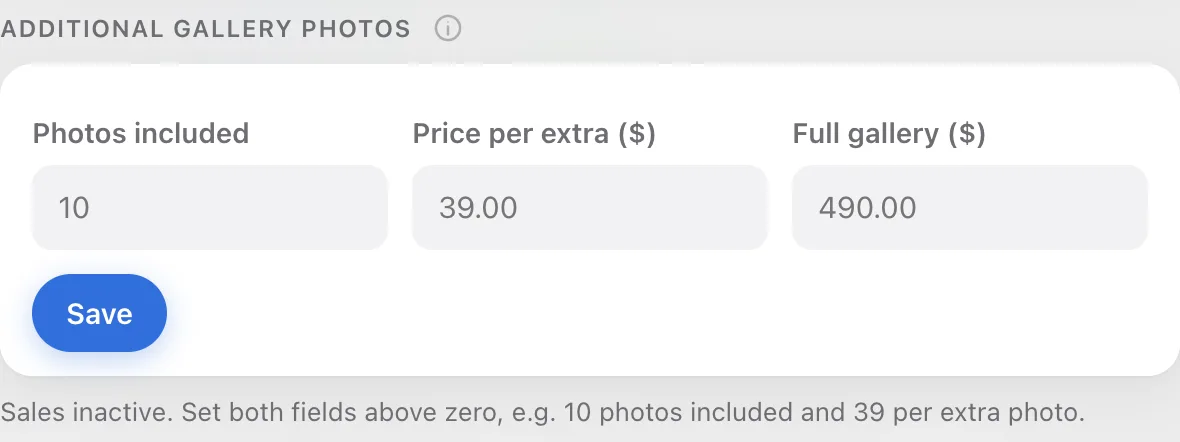
Go to the gallery, click Gallery settings and scroll to Additional gallery photos. While the fields are empty, you'll see Sales inactive below them, with an example of how to fill them in.
2
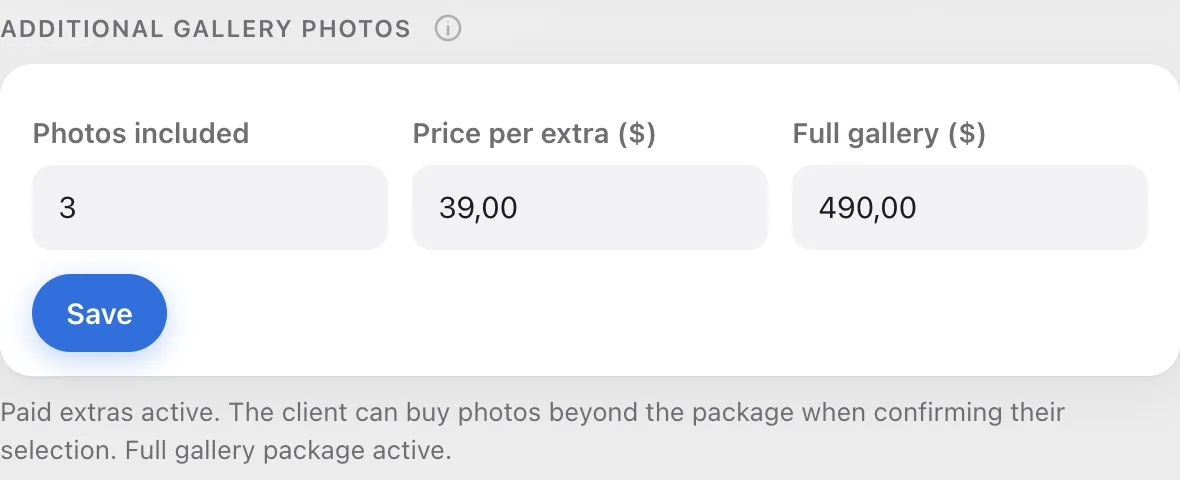
Enter the package and the price per extra photo
Fill in the first two fields:
- Photos included: how many photos your client gets in the session price,
- Price per extra ($): how much each photo beyond that package costs.
Click Save. The message below the fields changes to Paid extras active.
3
Check what your client sees
A client who picks more photos than the package sees it on the selection counter: how many they picked, how many the package covers and how many are extra.

4
Deliver the photos after payment
Confirming a selection with extras starts the payment. Until it goes through, downloading the selected photos is locked, on your side too. After payment everything goes back to normal and you download the ZIP as usual.