Watch the storage bar
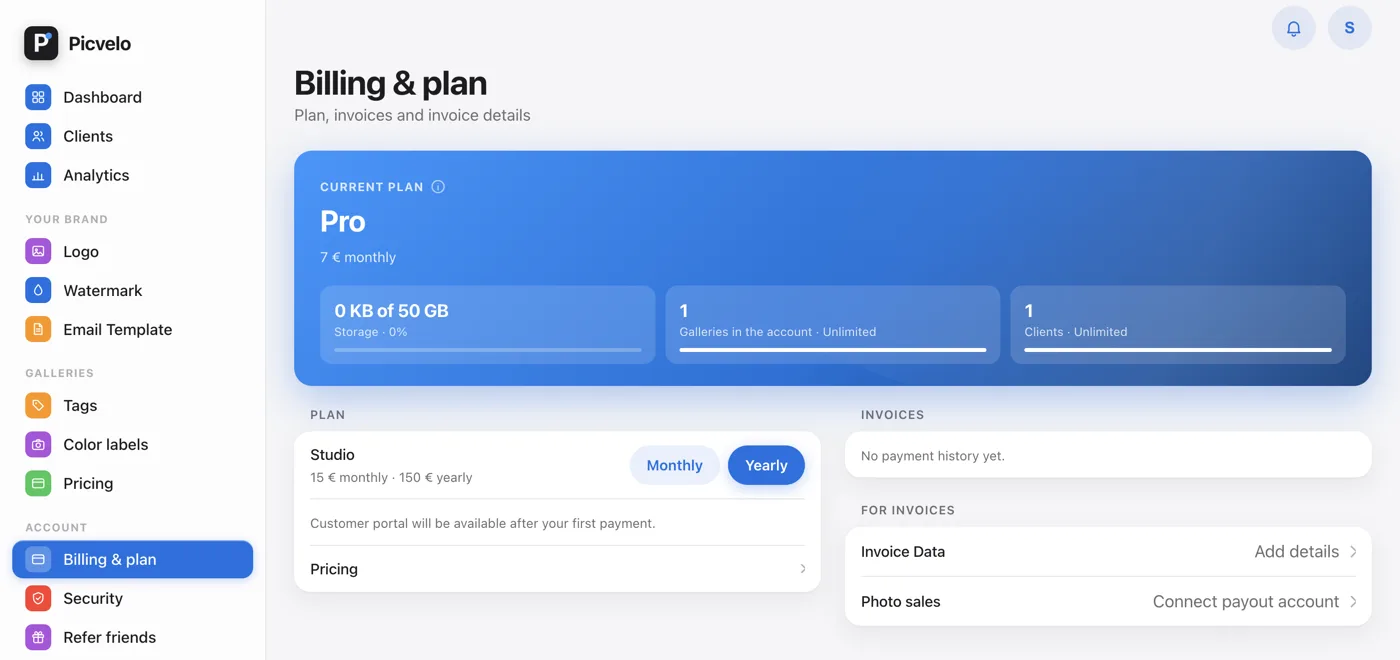
At the bottom of the side menu, on every page of the panel, there's a Storage bar with used and available space (for example 1.6 GB / 2 GB). It's the fastest way to see you're getting close to the limit. The percentage used and your gallery and client counts are on the Current Plan card in the Billing & plan tab.
React to the warning
Once 80% of your storage is used, a warning with a Pricing button appears on the Dashboard. Above 90% it turns red. On a paid plan, the Current Plan card also shows an Add storage link.
Once you're over, uploads are blocked
If you try to upload another photo, you get a message that there's no space left. Your clients can still open their galleries and pick photos as usual.
Storage limit reached. Add extra storage (+50 GB packs) or upgrade your plan to continue uploading.
Free up space or grow your plan
You have three options: delete old galleries and photos, upgrade to a higher plan or buy a +50 GB pack. Deleting frees up space right away.