Open Billing & plan
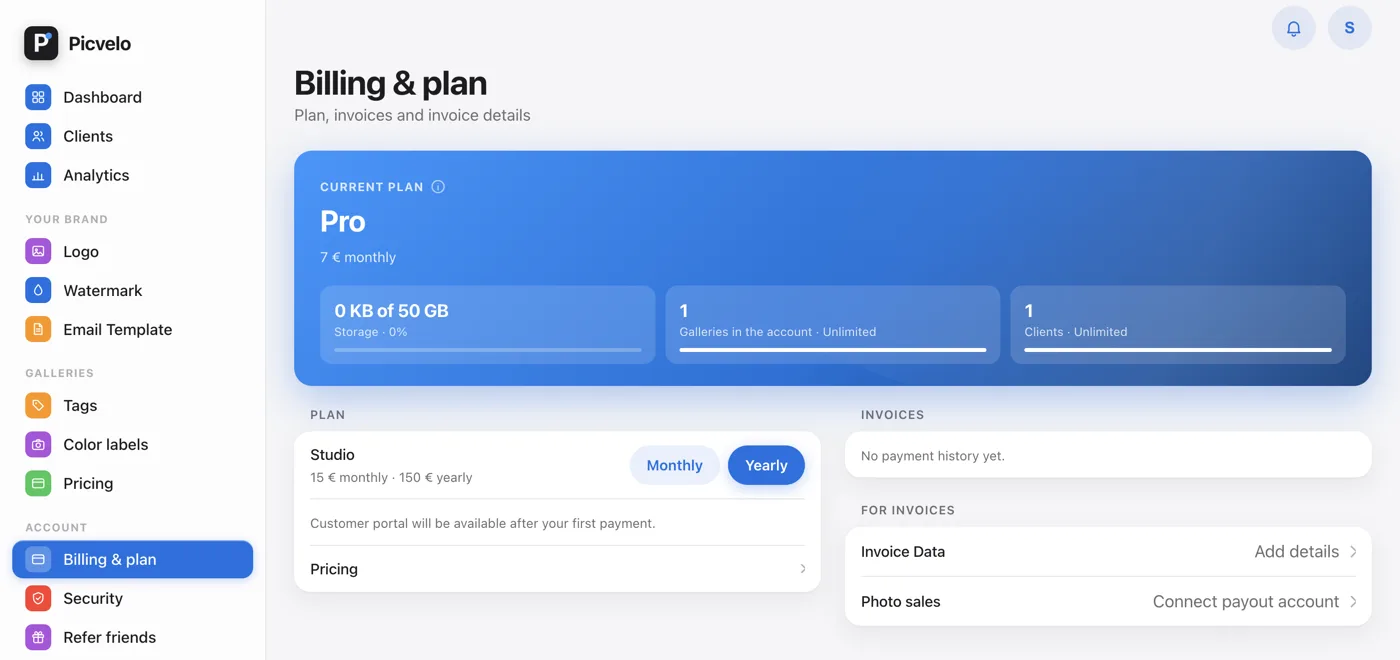
In the side menu of the panel, under Account, click Billing & plan. At the top, the Current Plan card shows your plan, renewal date, storage use and the number of galleries and clients.
Choose a plan and billing period
The Plan section shows the plans above your current one (on Free: Pro and Studio, on Pro: Studio) with monthly and yearly prices. Yearly billing costs noticeably less per month. Click Monthly or Yearly next to the plan you want.
Pay through Stripe
On your first purchase, Picvelo sends you to a secure Stripe form. You enter your card details there, and a discount code in the same window. If you already have a subscription, changing plans doesn't open the form: Stripe charges the prorated difference to the card on file.
New limits apply right away
After a successful payment you return to the panel, and the new limits and features are active immediately. The payment shows up in the Invoices section. Moving to a lower plan or a shorter billing period is scheduled: it starts from the next billing period.