1
Where it is
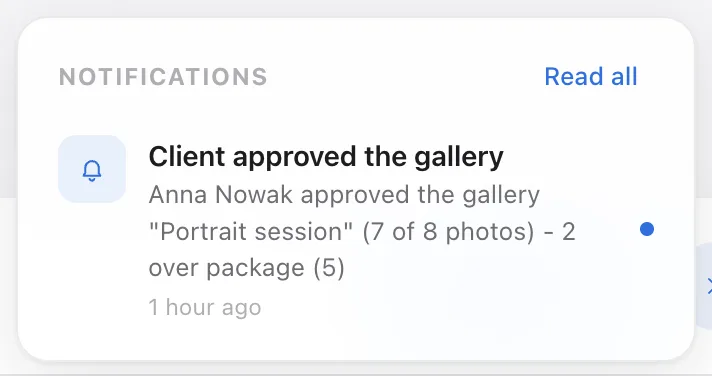
The bell icon sits in the top right corner of the panel, next to the circle with your initial that opens the account menu. A dot on it means unread notifications. Click it to open a list of the ten most recent ones.
2
What shows up there
- the client approved the gallery, with the number of selected photos,
- the client asks to select again when they want to change their mind,
- the time to approve has passed when the client didn't make it before the deadline (a gallery with marked photos then closes by itself),
- client address rejected when the recipient's mail server didn't accept the email,
- the client downloaded the photos from a delivery gallery,
- an order for photos beyond the package, paid or to be settled directly,
- subscription matters: your plan ending soon, a failed payment, a storage limit warning,
- a chat reply when we answered your question.
3
Reading and clearing
Unread items have a dot on the side. Clicking an item opens the related gallery or client page and marks it as read right away. The Read all button at the top of the list appears only when there's something to read.
4
Bell vs. email
These are two separate channels for the same event. Unsubscribing from emails doesn't turn off the bell, and reading a notification doesn't stop the email. If you don't want messages in your inbox but still want to know everything, unsubscribe from emails and keep the bell.