Check Spam and the Promotions tab
Filters can be strict with emails from online services. Check:
- Gmail: Spam and Promotions,
- Outlook: Junk Email,
- Apple Mail: the Junk folder.
Add our domain to your trusted senders
Add @picvelo.com to your contacts or safe senders list in your email settings. It's the most reliable way to get future emails into your main inbox.
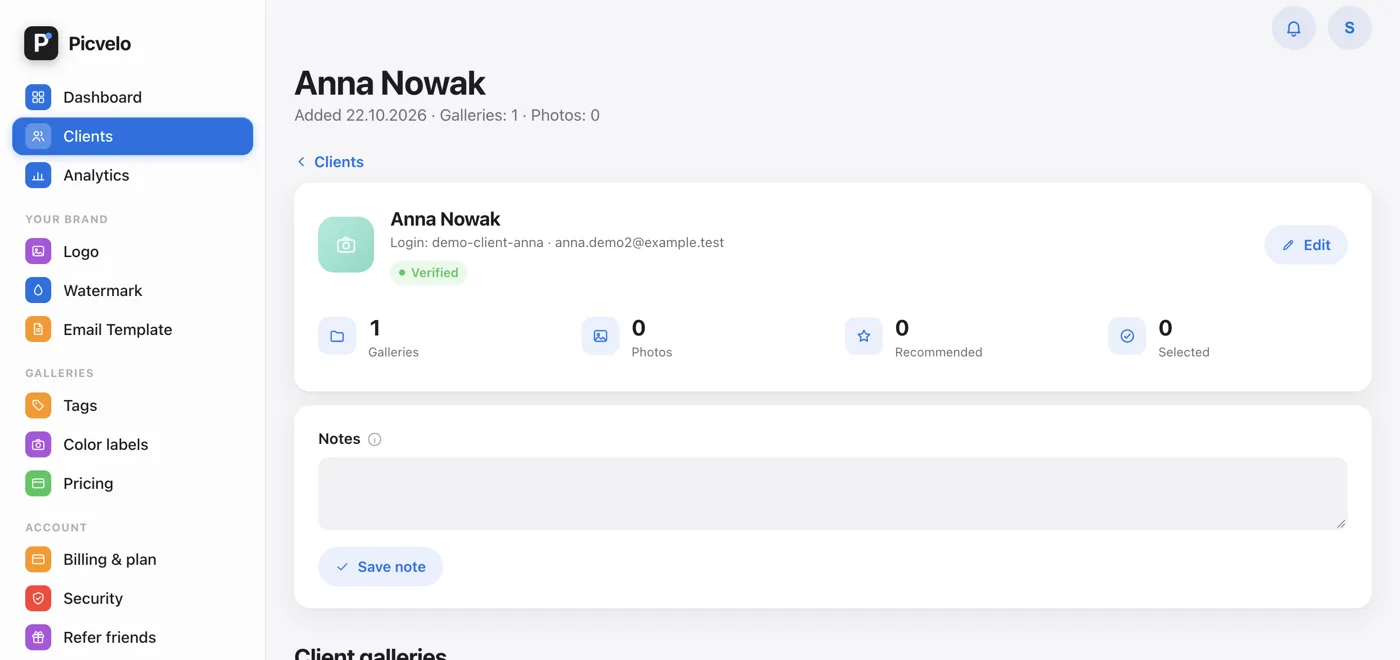
Check your client's address
Open the client's page and read the address letter by letter. A typo in the domain is the most common cause, and it looks exactly like a delivery problem: the panel says it sent the email, because it did. If your client's mail server rejected the email, you'll see a red Address rejected badge next to their name.
You see the verification badge on the client's page, and the Resend verification button after you click Edit. They're useful for something else: they confirm that the address exists and that someone reads it.
Write to us
If nothing above helped, get in touch through the contact form. We'll check on our side whether the email went out and what happened to it.