Fill in your billing details
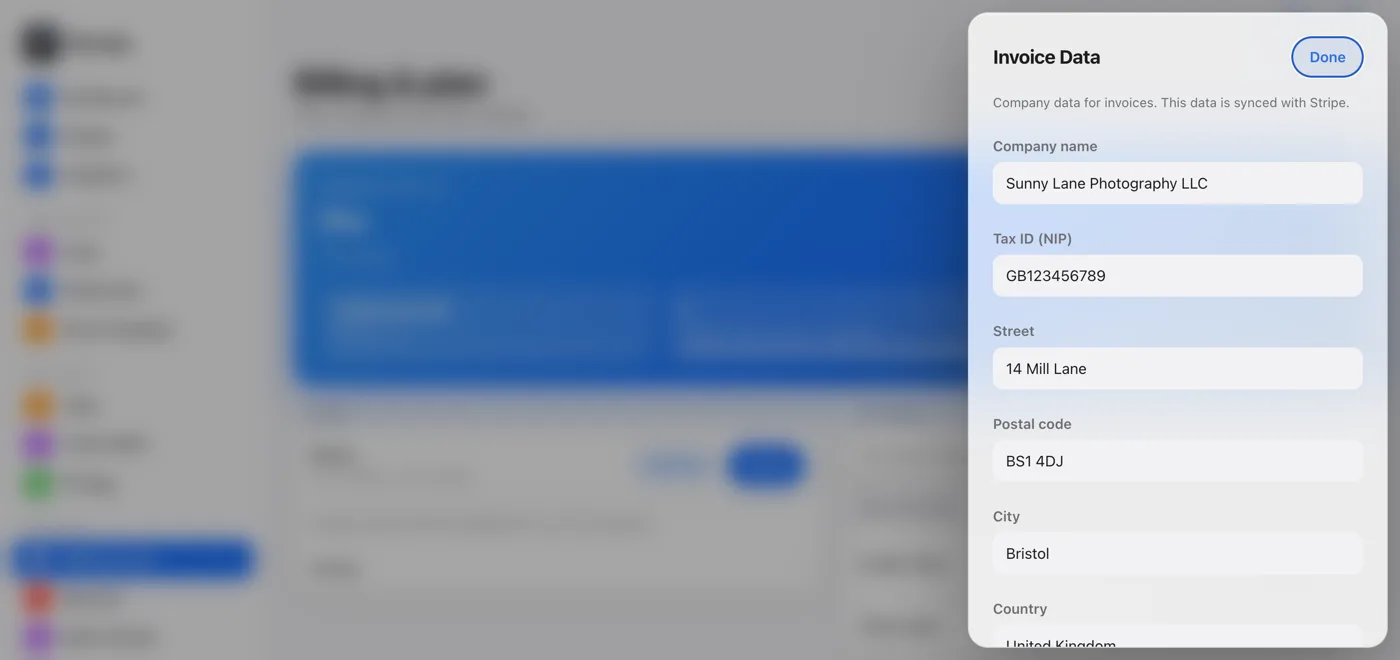
In the Billing & plan tab, in the For invoices section, click Invoice Data. In the window, enter your company name, tax ID, street, postal code, city and country, then click Save. The details sync with Stripe, so they appear on the next documents automatically.
Check your payment history
The Invoices section on the same page lists your payments: plan and billing period, date and amount. A payment that hasn't gone through yet is marked as pending. It's a quick view of what you paid for and when.
| Date | Plan | Amount | Status | |
|---|---|---|---|---|
| 05/14/2026 | Pro | €7 | Paid | |
| 04/14/2026 | Pro | €7 | Paid | |
| 03/14/2026 | Free → Pro | €7 | Paid |
Open the Stripe portal
Click Manage Subscription. The secure Stripe customer portal opens. There you can download PDF invoices, change your payment method or cancel your subscription.
Download the document
In the portal, every payment has a link to its invoice. The document includes the details you entered in the panel, so it's worth filling them in before your first payment.