1
Preview in the template editor
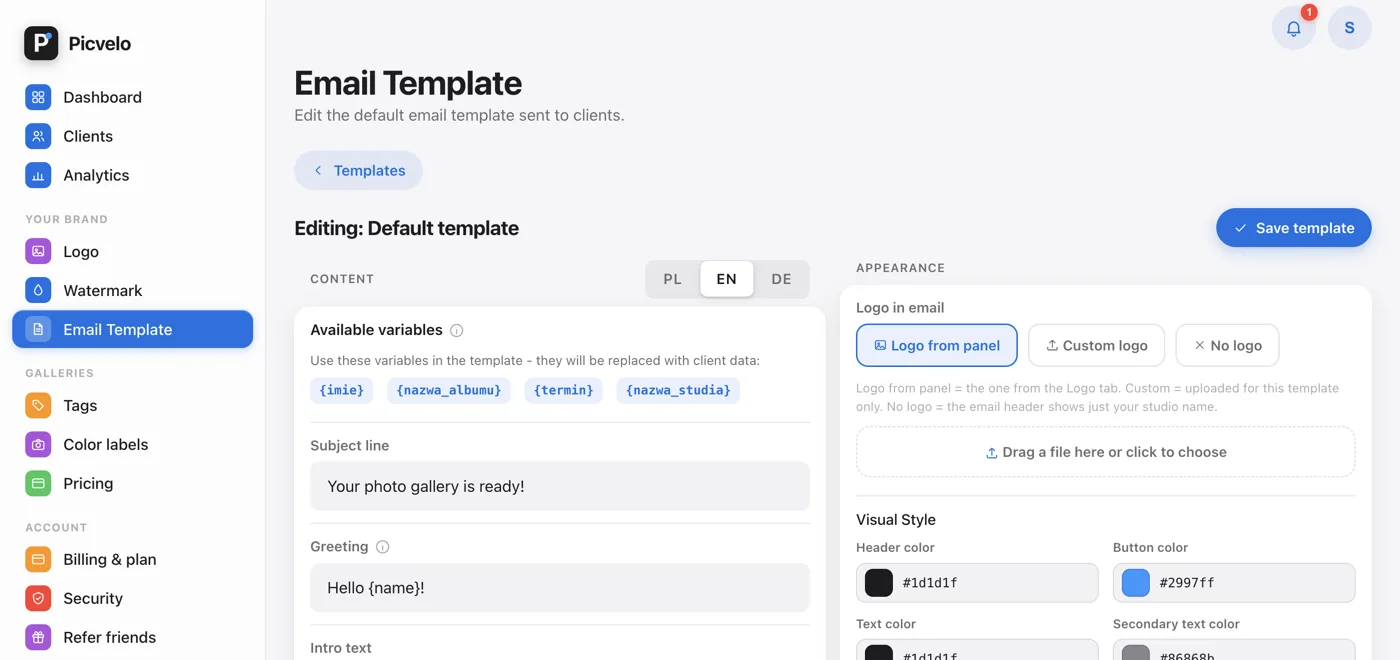
The Email Template tab has a preview in the right column, next to the form. Changes to text, color or font show up right away, without saving. It's a good place to play with the look, because nothing leaves the panel.
2
Preview of a specific send
In the album, click Gallery settings and, under Email to client, expand Customize content. The preview shows the email for this client: their login, their password, the selected template and any changes saved for them earlier. It's the closest thing to what the recipient will really see.
3
What the preview shows accurately
- the text after all layers: the template, a named template, texts saved for the client, one-time changes,
- colors, font, button shape and the logo in the selected mode,
- whether the "sent automatically" note appears in the footer.
4
What the preview can't do
It can't check how a specific email app will display the message, and it can't tell you whether it will land in spam. For that you need to send to your own address. Here's how: add a test client with your own address and send them a gallery.