Open the Security tab
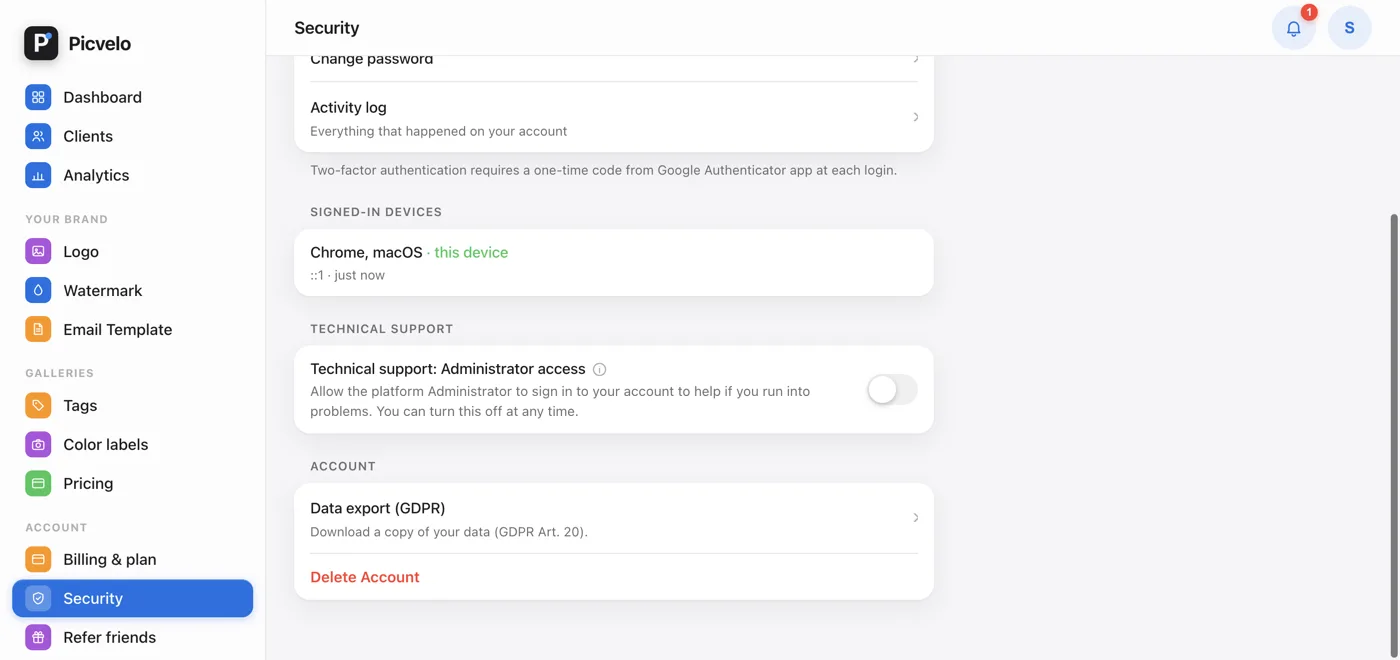
In the side menu of the panel, under Account, click Security. There you'll find two-factor authentication, password change, the activity log, signed-in devices, technical support access, data export and account deletion.
Change your password
Click Change password. In the window, enter your current password, then the new one twice. The minimum is 8 characters. If your current password doesn't match, you see a message and nothing is saved. After the change, Picvelo signs you out on your other devices and removes 2FA trust from all devices.
Review signed-in devices
The Signed-in devices section shows the browser and system, the IP address and the time of last activity. The device you're using right now is marked "this device". Entries inactive for 30 days disappear on their own.
Sign out a device you don't recognize
Click Log out next to the device, or click the entry itself to see details and choose Sign out device. The next time someone uses that device, they'll need the password again. Sign out other devices signs out everything except your current browser.