Install an authenticator app
We recommend Google Authenticator, 1Password or Authy. They all support the TOTP standard and work on iOS and Android.
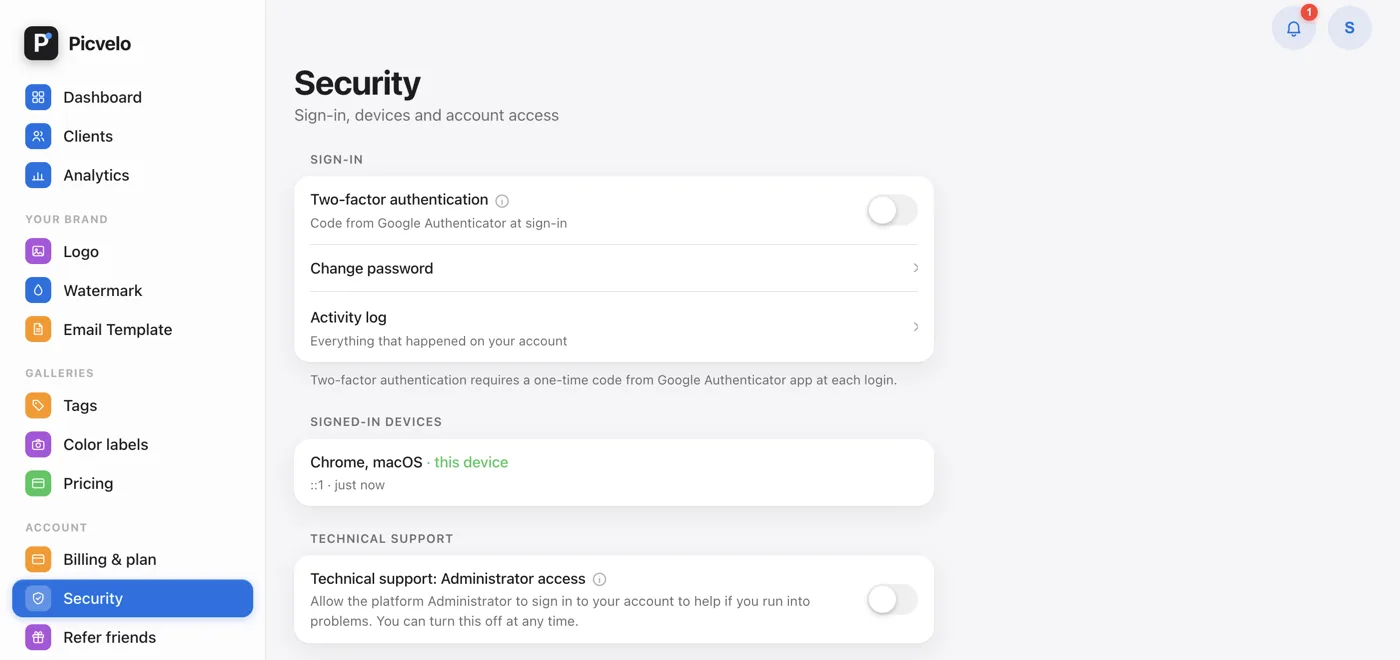
Open the Security tab
In the side menu of the panel, under Account, click Security. In the Sign-in section you'll find the Two-factor authentication row with a switch.
Turn on 2FA and scan the QR code
Turn on the switch. We show a QR code and the same key as text (Or enter secret manually), in case your camera doesn't cooperate. Scan it with the app and a six-digit code appears, refreshed every 30 seconds.
1. Open your authenticator app
2. Scan the QR code on the left
3. Enter the code it shows below
JBSWY3DPEHPK3PXPConfirm with the code from the app
Enter the code currently shown in the Code from app (6 digits) field and click Verify. From now on, every sign-in asks for a code. On the code screen you can tick Trust this device for 30 days, and Picvelo won't ask for a code on that device for 30 days.