Find the button in the album
There are two ways in, and both do the same thing. The first is Send the gallery to your client on the gallery card at the top of the page. It appears when the gallery is at the Photos uploaded stage and the client has an email address. The second is the Send email button: click Gallery settings and scroll to Email to client. That part appears once the gallery has photos.
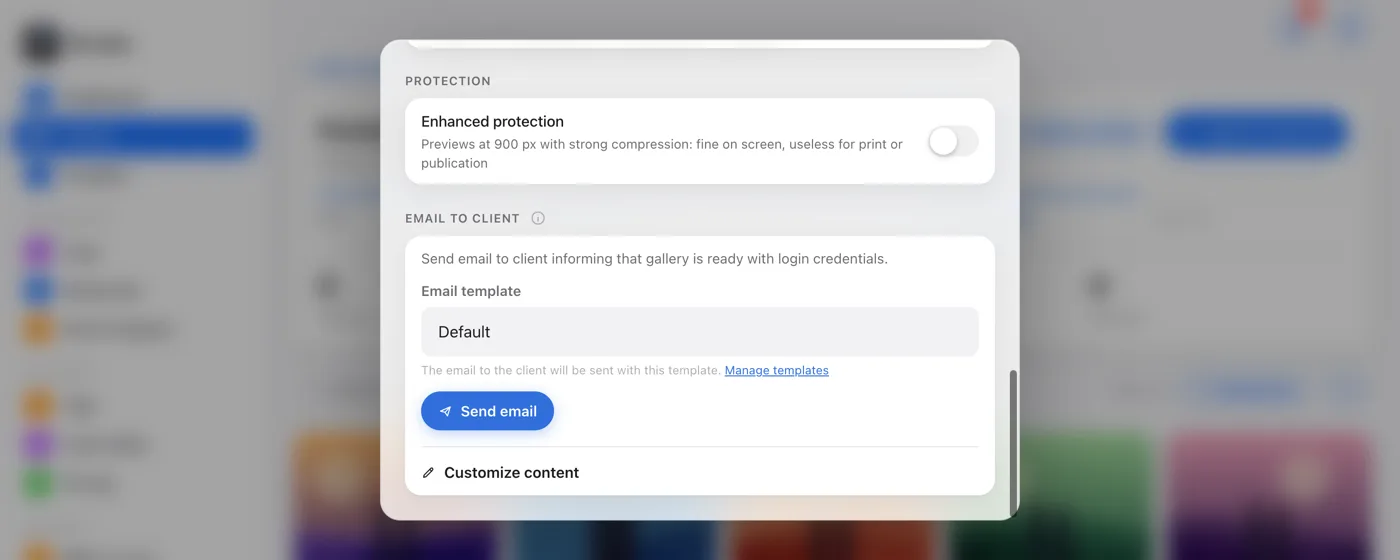
Confirm the send
You'll see the question "Are you sure you want to send an email with login credentials to the client?". Click Send and the email goes out right away, and the gallery moves to the Sent stage.
When the client has no saved password
You'll see this message: Cannot send: this client has no stored password. Set a new password in the client profile and send again. The email carries the sign-in details, so without a password there's nothing to send. Open the client page, set a password and come back here.
If the client has no email address at all, you'll see an Add the address on the client page link instead of the button. If you already sent the gallery link another way (text message, chat app), click Already sent and the gallery moves on.
What happens after sending
- the gallery is at the Sent stage, and after the client signs in for the first time it moves to Client selecting,
- the send is recorded in the activity log, so you know when it went out,
- your client gets an email with your business name, not the Picvelo name.