Set prices as usual
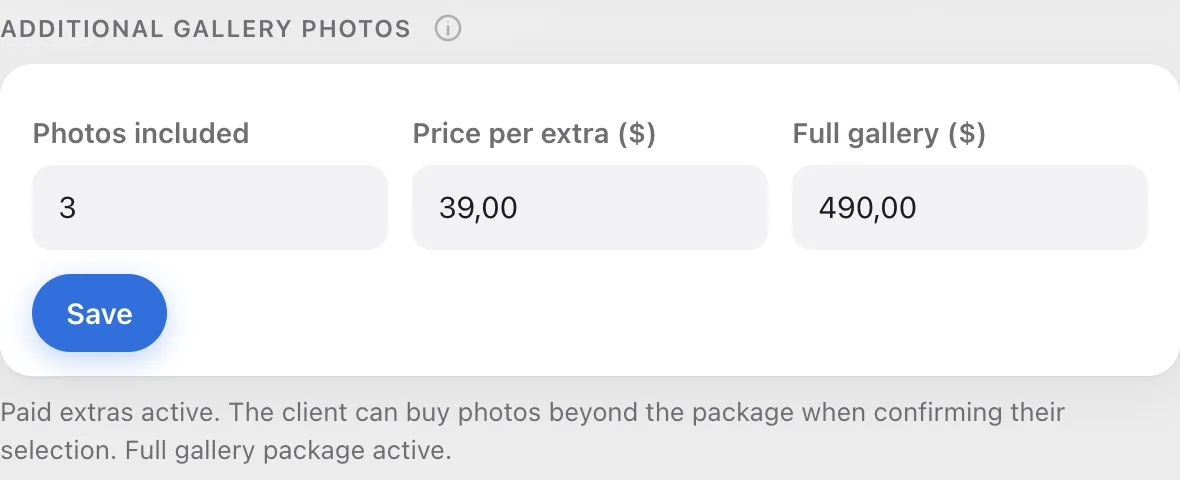
Direct payment has no separate switch. It turns on by itself when you don't have a ready payout account. You set prices exactly as for card payments, in the Gallery settings window, under Additional gallery photos.
Your client places an order
When your client picks photos beyond the package and clicks Confirm selection, the confirmation window tells them the order goes to you and you'll settle the payment directly. After confirming, they see a message that you'll contact them about the payment.
Get the notification
You hear about the order in two ways: the bell in the panel and an email. Both tell you which client, which gallery, how many photos and what amount, plus a reminder to confirm the payment on the gallery page.
Confirm the payment on the gallery page
On the gallery page, below the status card, a box appears: Extra photos order: payment outside Picvelo, with the amount worked out. If the client bought the whole gallery, you'll see "All gallery photos" and the price instead of a photo count. When you get the money, click Payment received. That removes the lock and lets you download the photos.