Create a delivery gallery
You have two ways. After the selection is approved, click Deliver final photos below the gallery's progress steps, and Picvelo creates a delivery gallery for the same client. You can also pick the Final photo delivery type when you create a new gallery.
Upload the final files
Upload the edited photos the same way as in a selection gallery. In this gallery type we don't resize your files. They stay at the resolution you exported them in, with no watermark.
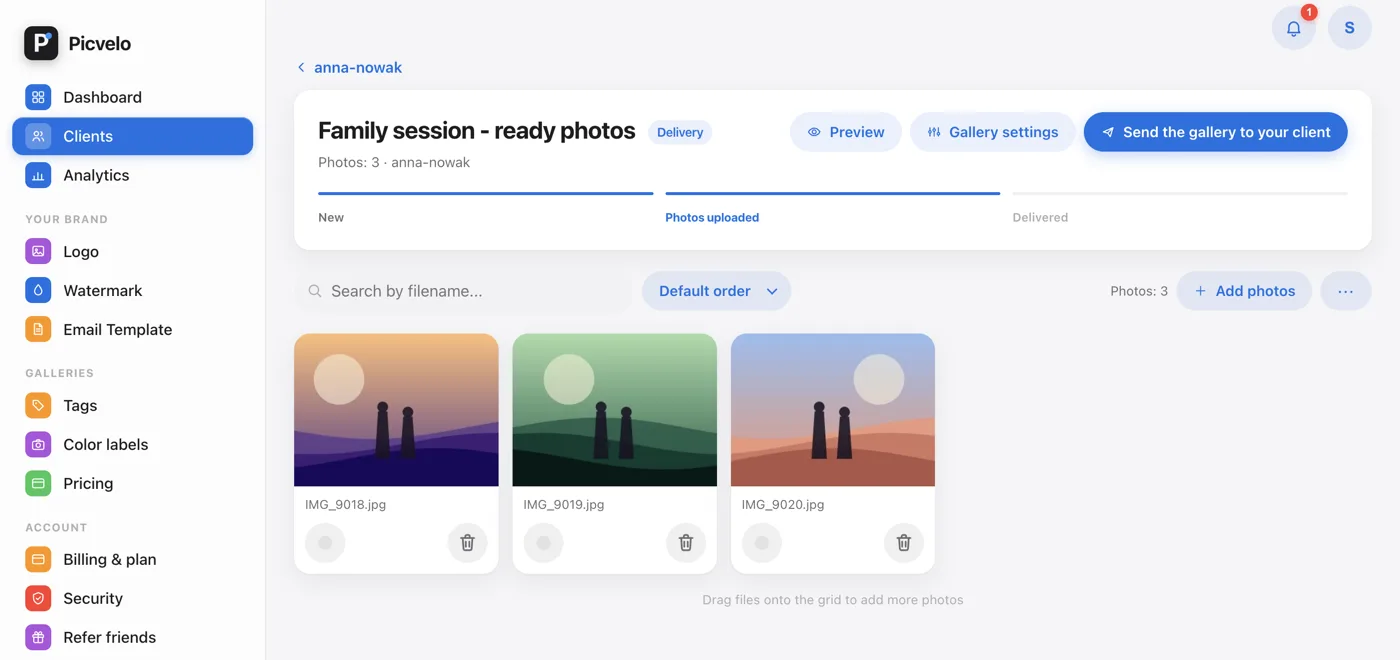
Send the gallery to your client
Sending works like it does for a selection gallery: click Send the gallery to your client, and your client gets an email with the link and their sign-in details. A delivery gallery has no selection buttons and no deadline.
Your client gets an email with a login link plus their own username and password for the gallery.
Your client downloads everything in one ZIP
After signing in, your client sees the Download all (ZIP) button and gets the full set of photos. You can download the same ZIP from the panel with the Download all (ZIP) button.